How to Use HSK Mock Code?
HSK Mock Help Guide
How to Use Your HSK Mock Code
Use your HSK Mock Code on a computer web browser or in the HSK Mock mobile app. Choose your preferred method below and follow the steps.
中文版 · 如何使用HSK Mock兑换码Use Your Code on a Computer
Open HSK Mock in a web browser and follow these six steps.
Outside mainland China: hskmock.com
Mainland China: hskmock.cn
Both are official HSK preparation platforms and offer the same HSK mock tests based on real past exams.
Open the HSK Mock Website
Using a computer browser, with Google Chrome or Safari recommended, open the HSK Mock website. Click Log In / Sign up in the upper right corner.

Register or Log In
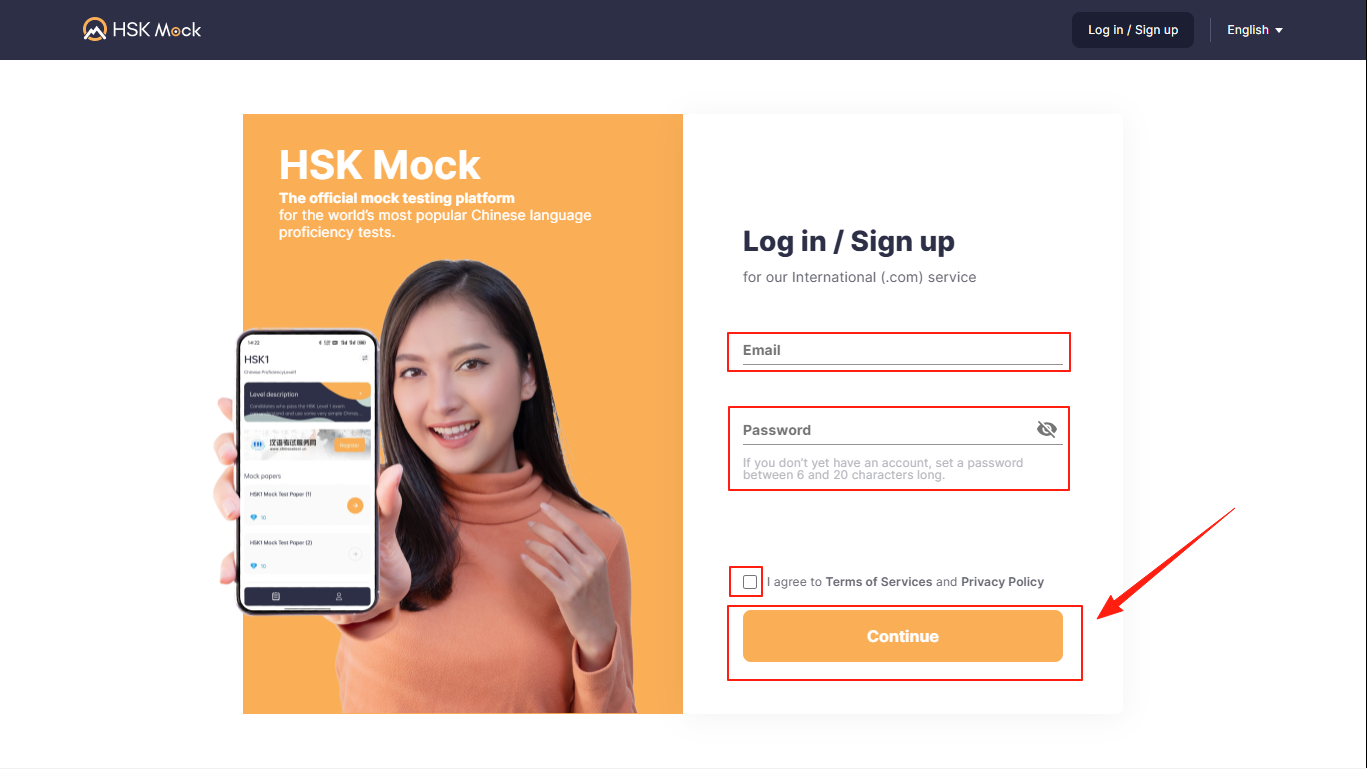
Enter your e-mail and password, check the terms and conditions, then click Continue.
Start Practicing
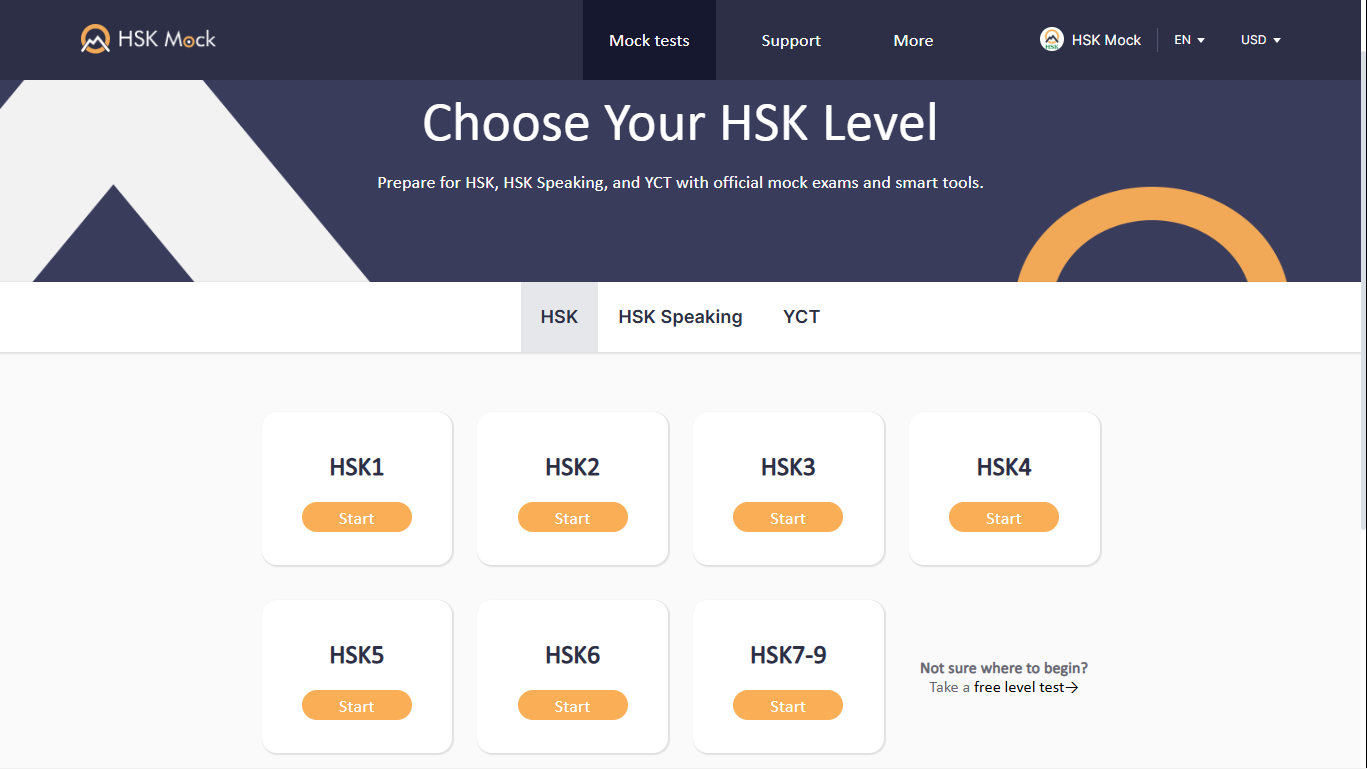
Click Start Practicing to continue.

Select Your HSK Level
Choose the HSK level you want to practise.
Choose a Mock Paper
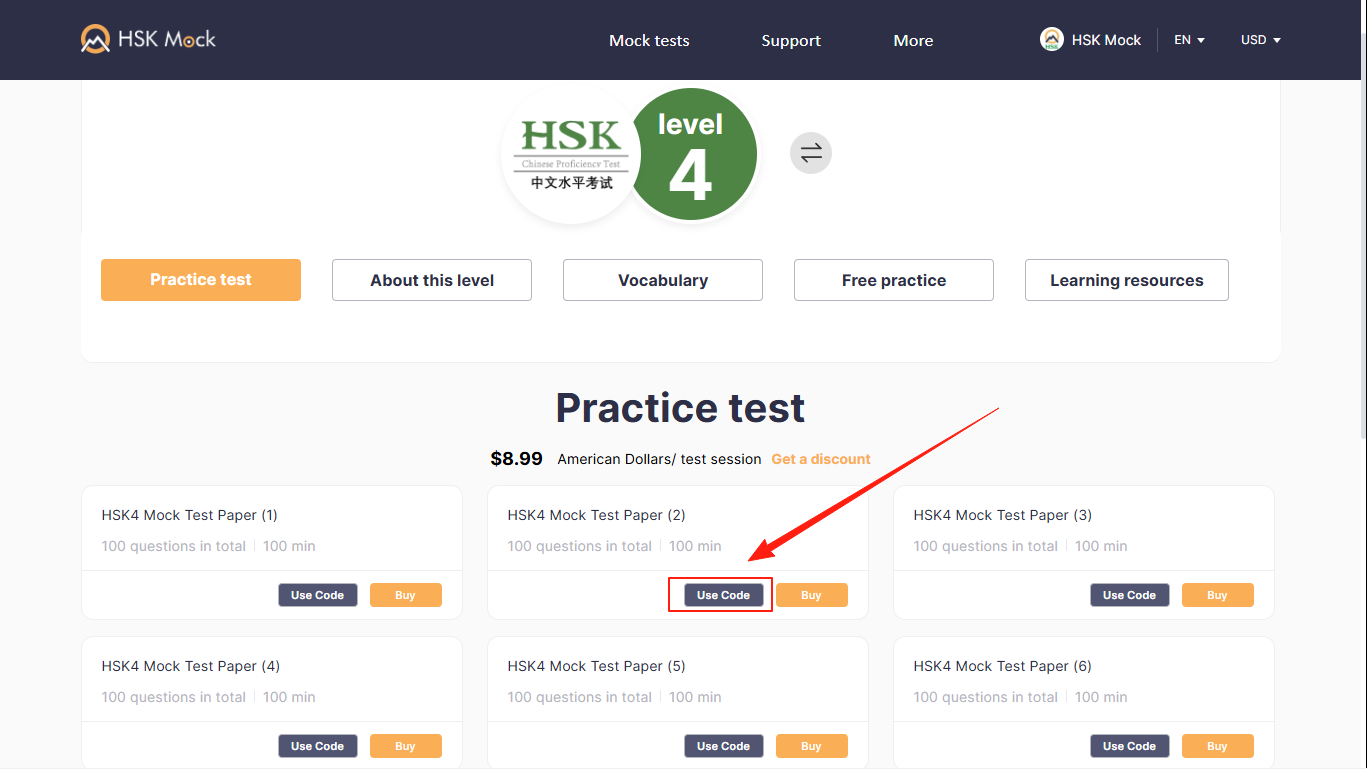
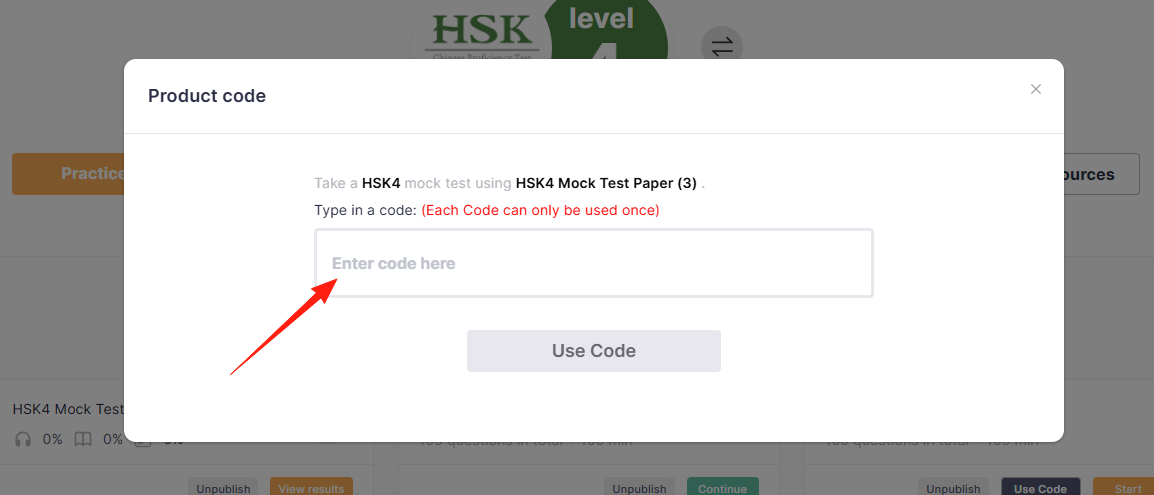
Select the paper you want to take, then click Use Code.
Enter Your HSK Mock Code
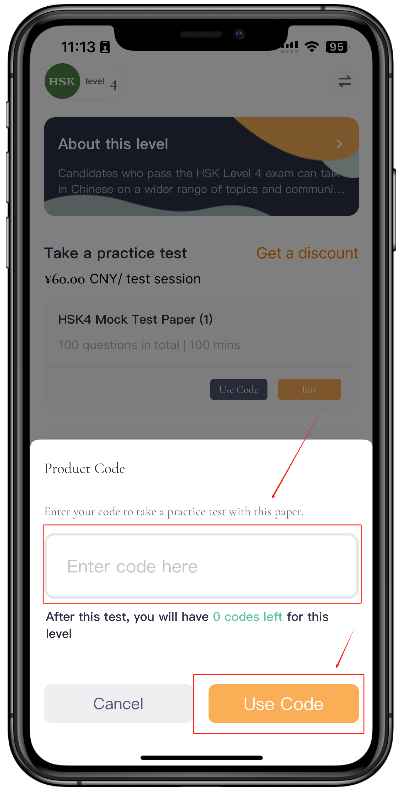
Enter your Code to unlock the paper and start answering.
Use Your Code in the Mobile App
Download the correct HSK Mock app for your region, then follow the steps below.
Download the HSK Mock App
Choose the app for your region and device. Make sure you are using the latest version.


Both are official HSK preparation platforms and offer the same HSK mock tests based on real past exams.
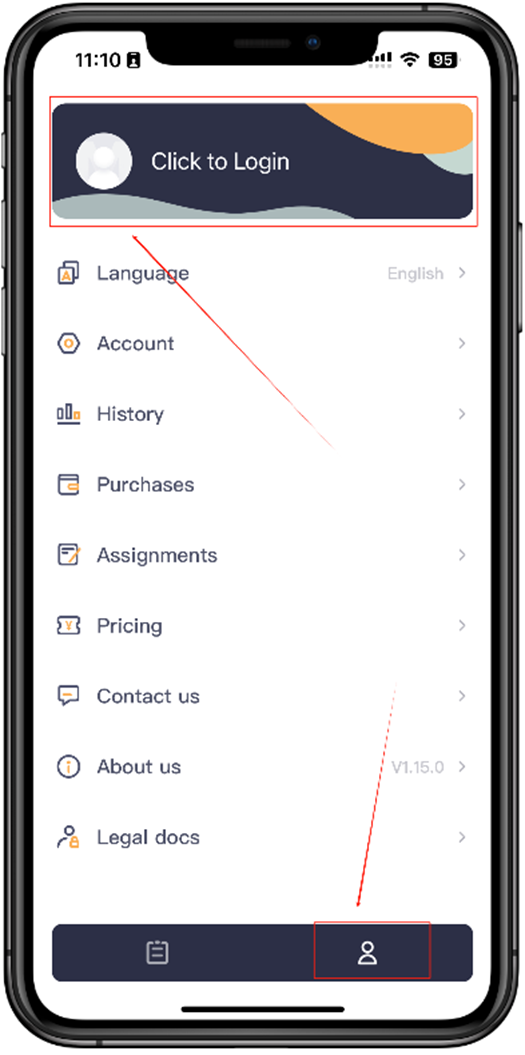
Open the Login Screen
Tap the human icon at the bottom right, then tap Login at the top.
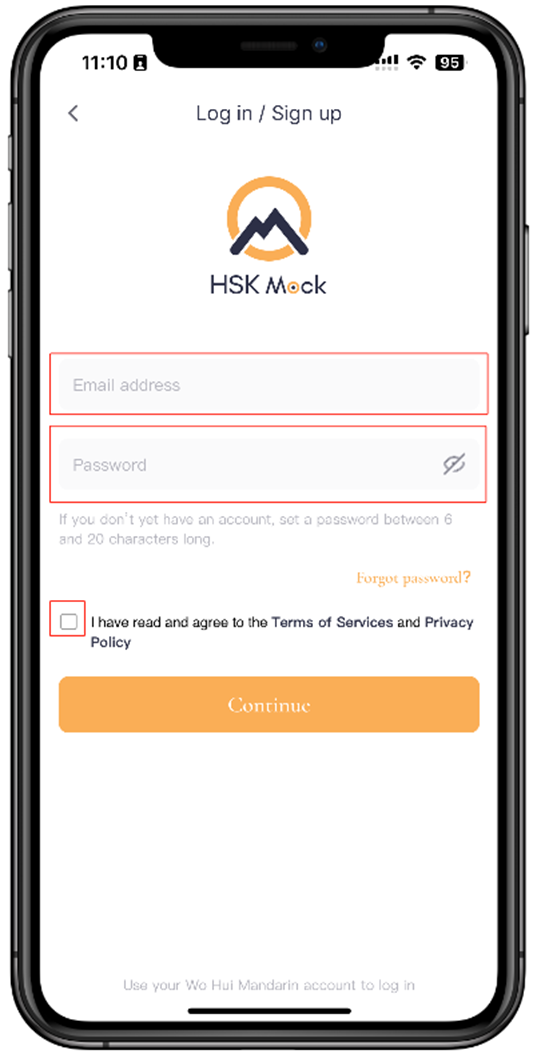
Enter Your Login Details
Enter your e-mail and password, check the terms and conditions, then tap Continue.
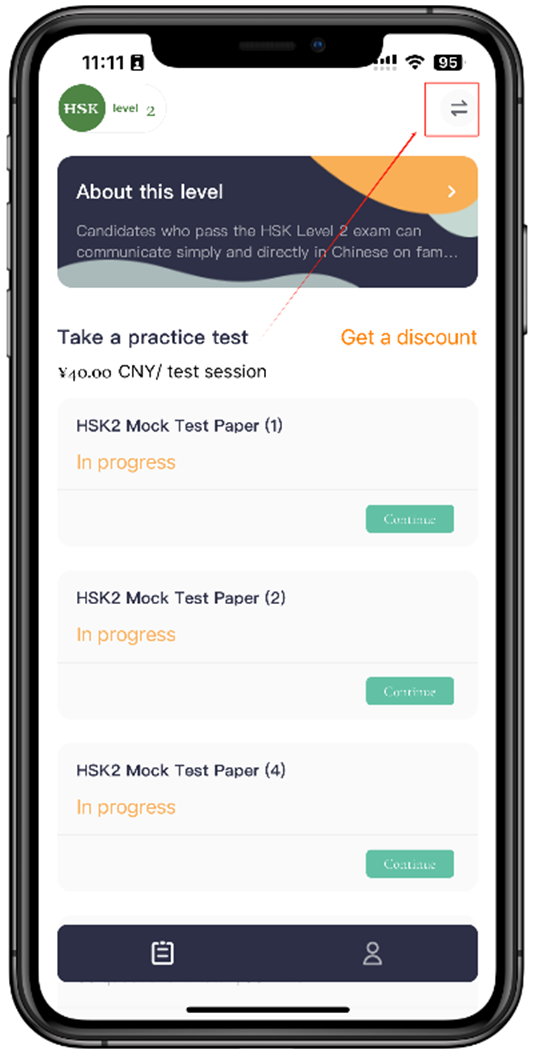
Open the Level Selector
Tap the level selection button in the top right corner.
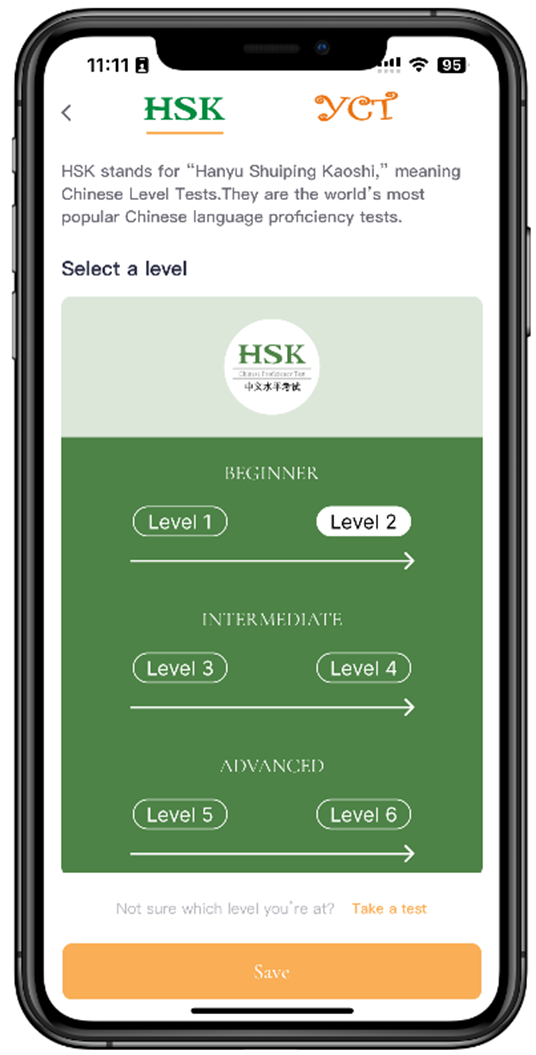
Select and Save Your Level
Choose your HSK level, then tap Save.
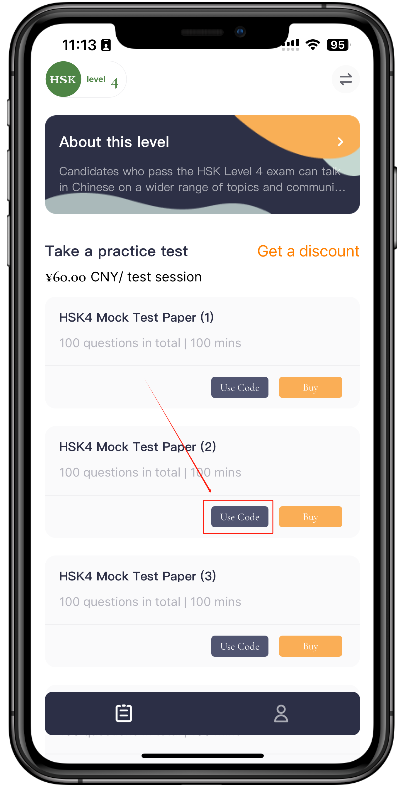
Choose a Paper and Use Your Code
Select the paper you want to take and tap Use Code.
Enter your Code to unlock the paper and start answering.